Why Your Screen Recordings Look Amateur (And How to Fix It in 5 Minutes)
The difference between an amateur screen recording and a professional one isn't talent — it's knowing these 7 specific things to avoid.
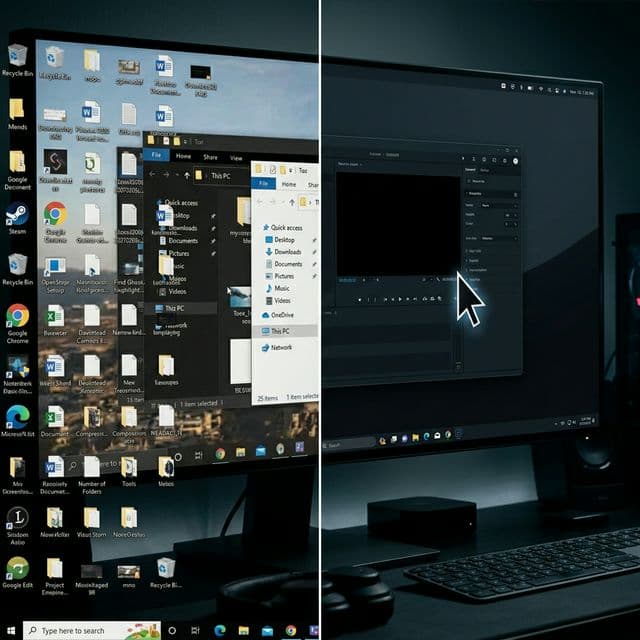
Every day, thousands of SaaS founders, developers, and creators hit record on their screen. And every day, thousands of recordings end up looking like they were made in 2015.
The irony? Your product might be beautiful. Your code might be elegant. Your workflow might be brilliant. But if your screen recording looks flat, unpolished, and hard to follow — that's the impression people walk away with.
Here's the good news: the difference between an amateur screen recording and a professional one isn't talent or expensive equipment. It's knowing 7 specific things to avoid.
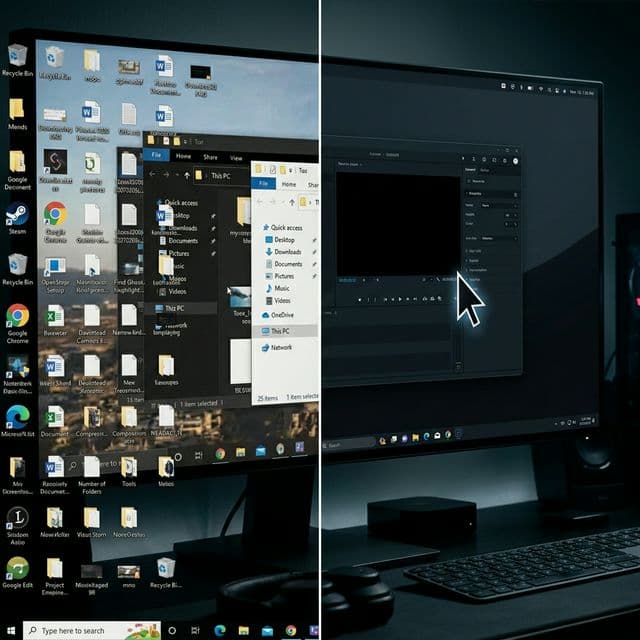
1. The Cluttered Desktop
You hit record and... there's your messy desktop staring back at the viewer. 47 files scattered across the screen. That embarrassing folder name you thought no one would see. Three browsers with tabs you'd rather not explain.
The fix: Use a clean wallpaper or a branded background. Even better — use a screen recording tool that lets you swap the background automatically. Record against a gradient or your brand colors. It takes 3 seconds and immediately looks 10x more professional.
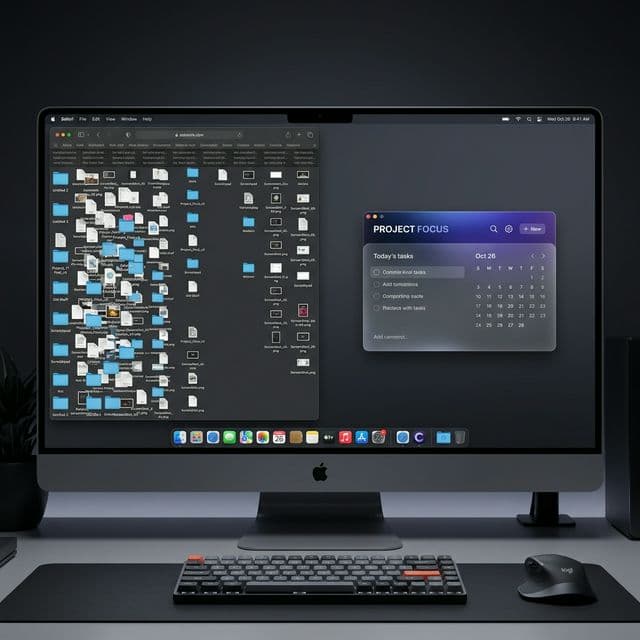
2. The Tiny Cursor Problem
You're demonstrating a feature, clicking through menus, typing in fields. But the viewer is watching on their phone or in a small browser window. Your cursor is a 12-pixel dot on a 4K recording.
The fix: Enable cursor highlighting or auto-zoom. When you click something important, the recording should zoom in smoothly. The viewer's eyes should never have to hunt for where the action is happening.
Tools with smart zoom will detect your clicks and automatically zoom to the relevant area. This single feature can transform a recording from "I can't follow this" to "this is so clear."
3. Dead Air at the Start and End
"Okay, so, um, let me just... 5 seconds of silence... right, so what I wanted to show you is..."
And at the end: awkward cursor wandering as you figure out how to stop recording
The fix: Trim the first and last few seconds. Always. If your tool has AI-powered smart clipping, even better — it can automatically detect and remove silence, filler, and dead time throughout the entire recording. What used to take 10 minutes of manual editing happens in one click.
4. No Captions
40% of social media video is watched without sound. On LinkedIn, it's even higher. If your screen recording is a product demo or tutorial shared on social media, nearly half your audience is reading — not listening.
The fix: Add captions. AI-powered captioning can transcribe your voiceover in 50+ languages automatically. Position them at the bottom, style them to match your brand, done. This isn't optional anymore — it's expected.
5. Flat, Lifeless Framing
Your recording is a perfect rectangle of your screen. No depth. No motion. No visual interest. It looks like a screenshot that happens to move.
The fix: Add subtle 3D perspective or camera movements. A gentle dolly push, a slight tilt, a bird's-eye angle. These cinematic touches add a "wait, how did they make that?" quality that makes viewers pay attention.
You don't need After Effects for this. Modern screen recording tools can apply these effects with one click.
6. Ignoring the Audio
Your mechanical keyboard sounds like a machine gun. There's a constant hum from your air conditioner. Your mic is picking up your dog barking three rooms away.
The fix: Use a decent microphone (even AirPods are better than your laptop mic). Record in a quiet space. And if your tool supports it, use background noise removal. Clean audio is the single biggest factor in perceived production quality.
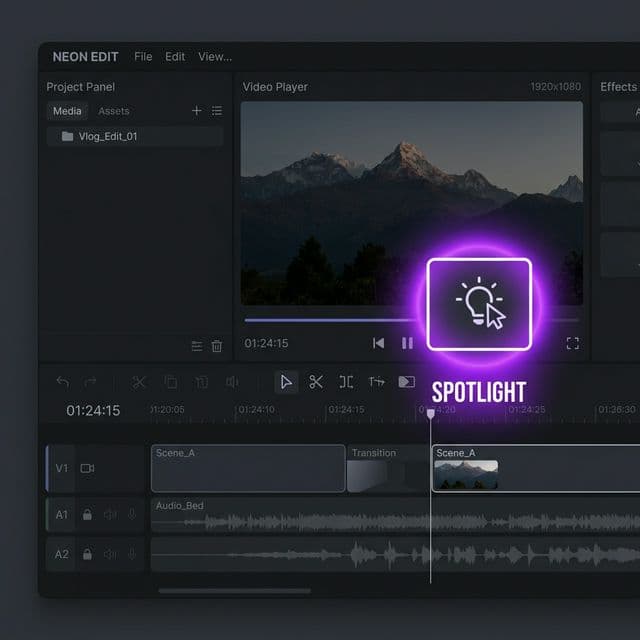
7. No Visual Hierarchy
You're explaining a complex workflow, but everything on screen has the same visual weight. The viewer doesn't know where to look. Important actions blend into the background.
The fix: Use callouts and highlights. When you click an important button, dim the rest of the screen and spotlight the action area. Add a subtle glow or border around the key element. This guides the viewer's eye exactly where you want it.
The Bottom Line
Professional screen recordings aren't about having expensive tools or video editing skills. They're about avoiding these 7 mistakes that make even great products look underwhelming.
The tools to fix all of this exist today. Some are built into modern screen recording apps. Some require a quick edit after recording. At Screenify Studio, we're building these features directly into the recording process, with a $149 lifetime Pro plan that ensures you never have to deal with another subscription.
But the most important step? Just being aware. Now that you know what to look for, you'll never unsee it.